Fluid Model Polygons
Use the Fluid Model Polygons tool under the Output Tools button (model > Fluids > Output Tools) to create polygons for each fluid zone and the fluid levels that are associated with the fluid model. The fluid model polygons uses the information from Assign Boundaries and Fluid Levels forms in the Fluid modeling workflow. Depending on the compartment boundaries and fluid levels information, three categories of polygons are created:
- Compartment Boundary (
 ) Intersection of the top surface with the fluid compartment boundary.
 - Fluid Level Contour (
 ) Intersection of the top surface in the fluid model compartment with the fluid level.
 - Fluid Level Hydrocarbon Contour (
 ) Consists of one or more closed polygons indicating the presence of hydrocarbons. The fluid level hydrocarbon contour is a combination of fluid level contour with the parts of the fluid compartment boundary that are located above the fluid level.
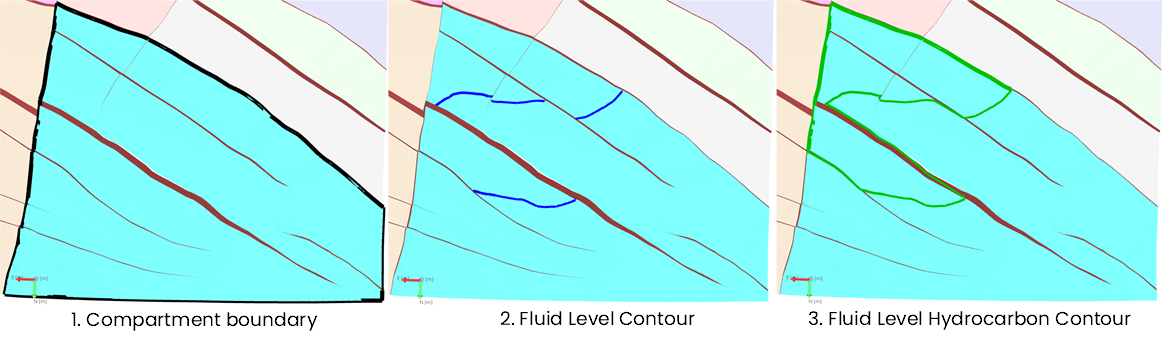
Top view of different types of fluid polygons for a fluid compartment. The compartment boundary is shown in black, fluid level contour in blue and fluid level hydrocarbon contour in green. click to enlarge
The created polygons are saved under the Fluid Models > Fluid Compartments > Compartment name in the JewelExplorer. A compartment boundary is created for each compartment. If the compartment in the fluid model consists of FWL and GOC, fluid level contours and fluid level hydrocarbon contours are created for both the fluid levels.
Creating fluid model polygons
- On the Fluid Model Polygons form, select the Fluid Model of interest from the drop down list.
- Select the fluid Zones from the list for which the fluid polygons will be created.
- Click OK to create fluid model polygons and close the form, or click Apply to create polygons for another fluid model.
- The fluid model polygons will appear in the JewelExplorer as polyline set objects under the Fluid Compartments.
Editing fluid model polygons
- The fluid polygons saved in the Fluid Compartments folder under the Fluid Model are not editable.
- Use the context menu of the fluid polygons and click on Duplicate to Data option to copy the fluid polygons. Use Ctrl to select multiple polygons. The fluid polygons are copied to the Fluid Polygons folder
 under the Data section.
 - The copied polygons use the following naming convention - Compartment name compartment boundary, FWL (or GOC) compartment name contour, and FWL (or GOC) compartment name hydrocarbon block. Multiple iterations of copied polygons for the same compartment is followed with numbering.